

Abhishek Banerjee
Members
-
Joined
-
Last visited
-
I did it. Now it works fine. Thanks
-
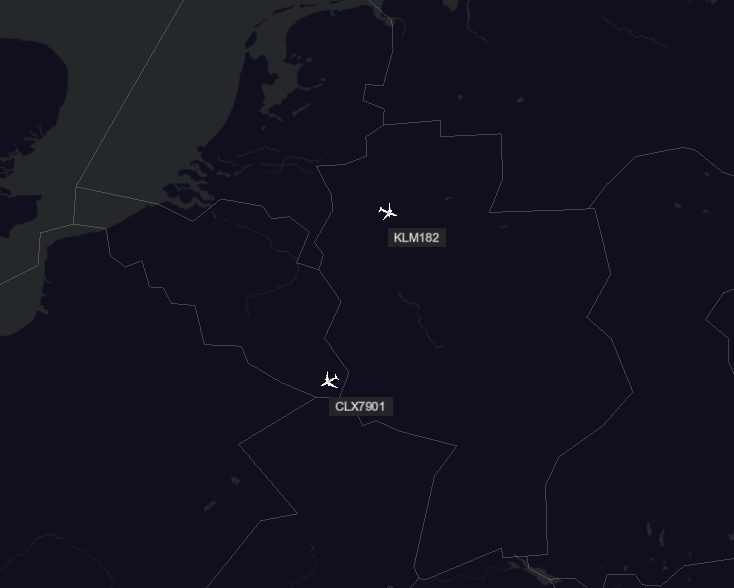
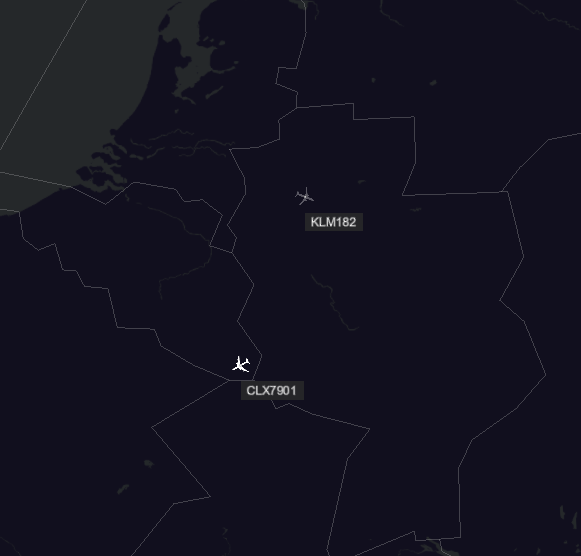
Hi friends, POSCON introduced very nice option is called Ghost Mode. It works in two ways. 1. During Taxi out to Take off time or approaching – landing to taxi in, if we pause our sim / crashed /some technical glitch happens POSCON automatically on Ghost mode. It means my aircraft will invisible in network but I can see other traffics. It helps other traffics & ATC controllers to run situation very easily without any disturbance. We can on manually on Ghost mode too . But during this period of time we can’t unGhost mode (back to normal) once enter runway or landing time. 2. During cruising time we can on Ghost mode manually if we want AFK (away from keyboard), we can see our aircraft with little light color, but till we can fly with POSCON network. Really amazing options added by POSCON developers. Just sharing my beta testing experience. Hope you will enjoy with this option. I added 2 pictures, first one normal mode / Ghost mode off & second one Ghost mode on.
-
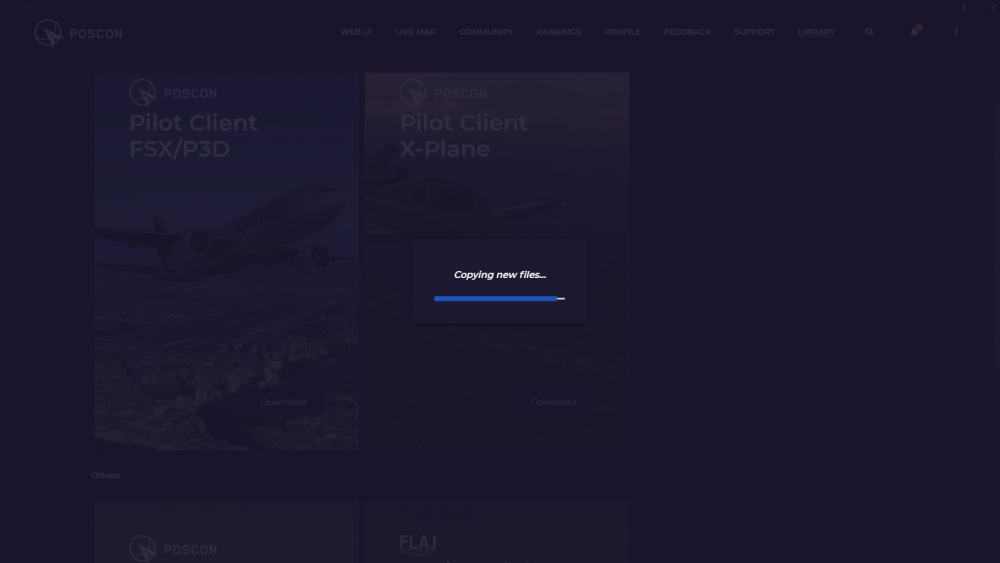
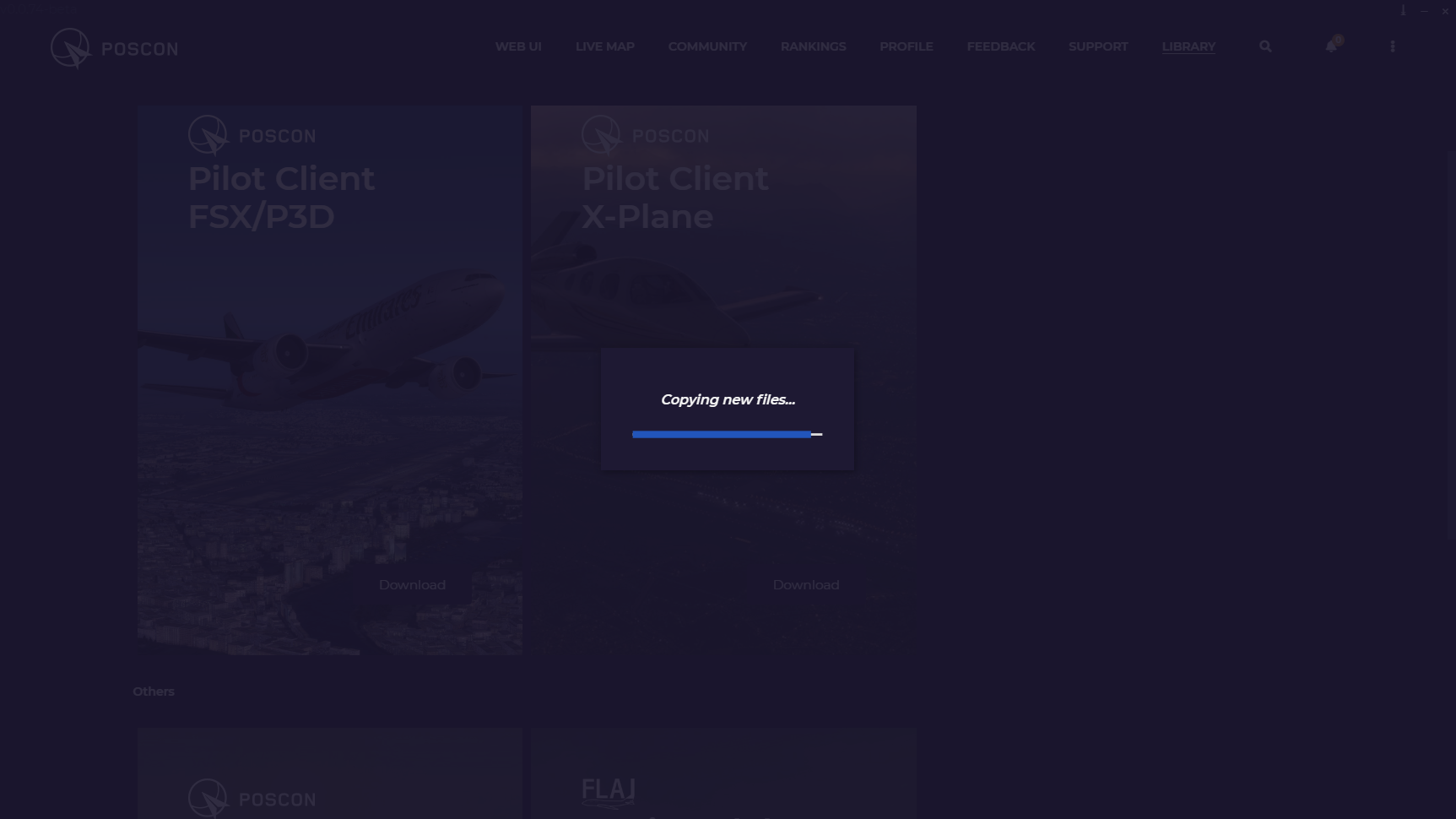
Hi, this is my 4th time , trying to install but it stopped not downloading any more. newly installed XP11. Any solutions.
-
-


Important Information
By using this site, you agree to our Terms of Use, Privacy Policy, and Guidelines.