
Effective Use of Guard Frequency

By Guest
· 6617 views
You're flying along from Miami to Chicago talking to various air traffic control centers while en route. About halfway to Chicago, you notice radio silence; you try calling air traffic control with no answer. You check your microphone settings, everything seems to be working normal. What do you do?
Another day, you're flying a Cessna 172 VFR in your local practice area without talking to air traffic control when all of the sudden you notice black smoke coming out of the engine. You see an airport in the distance and you head towards it but you have no idea what airport this is. You need assistance from air traffic control, but have no time to figure out the proper frequency to contact, obviously, you are handling an emergency. What do you do?
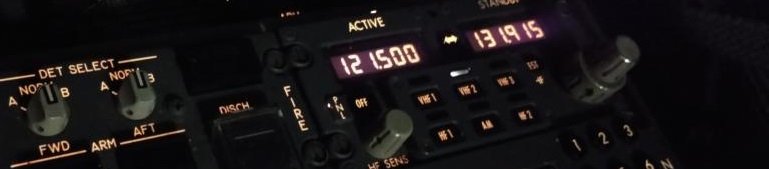
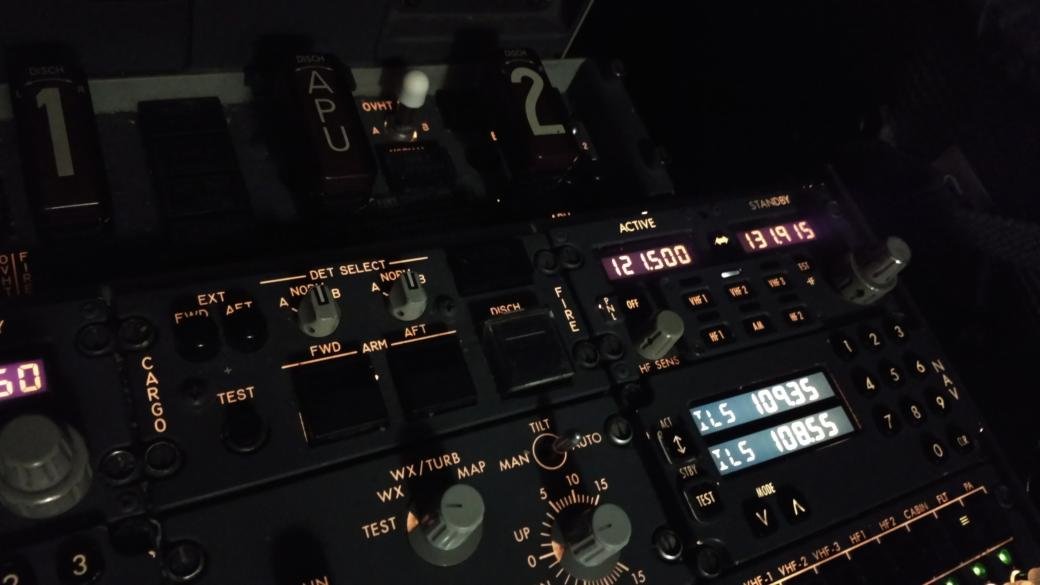
In both of these scenarios, GUARD frequency (VHF 121.5 and UHF 243.0) can be an effective tool. This is a frequency reserved for emergency transmissions as well as for aircraft that have missed a check in with ATC or not sure what frequency they should be on. 121.5 is used all over the world and nearby air traffic controllers are always monitoring this frequency.
In the first example we described, you could switch to 121.5 and transmit: "Delta 123, on GUARD, I lost contact with Memphis Center, can someone advise which frequency I should be on?" On the reverse side of things, air traffic controllers can use GUARD to locate an aircraft they were expecting to hear from or that have not been responding. For example, an air traffic controller could say: "American 123, Memphis Center, on GUARD, if you hear this message, switch to my frequency on 132.4." Sometimes an aircraft may be unresponsive because they are out of range of an air traffic controller's radio transmitter. Since there are often aircraft positioned in different parts of a center controller's airspace, a controller may ask another pilot for assistance to relay a message on GUARD in the hopes that their location will transmit a better signal to the unresponsive aircraft. In this scenario, GUARD provides an excellent resource in ensuring all aircraft are accounted for.
In the second example, we see the potential use of GUARD in an emergency scenario. The pilot could switch to GUARD and state that they have an emergency and are landing at the nearest airport. Since all air traffic controllers monitor GUARD, a radar controller can transmit on GUARD and provide better assistance to the pilot by issuing radar vectors, recording important information pertaining to the emergency, and coordinate for crash fire and rescue to be ready at the diversion airport.
Interesting to know as well, when an ELT beacon goes off, it transmits an aural signal on the GUARD frequency. Organizations like the Civil Air Patrol actually practice triangulating and locating a beacon to find the location to prepare for search and rescue missions in the event an aircraft crashes. The beacon signal from ELTs almost sounds like a siren.
 One final example worth mentioning is the DOD (e.g. Air Force, Coast Guard) monitor GUARD as well. Aircraft crossing over our international borders without following proper ADIZ entry procedures can be intercepted by military aircraft who will use GUARD frequency in an attempt to establish communication with the violator. If two-way communication is established on GUARD, the intercepting aircraft can provide further instructions to the pilot as necessary.
In conclusion it is strongly recommended, and in most instances required, for pilots to always monitor GUARD 121.5 on their second radio. In fact, airlines require crews to monitor 121.5 on a second radio when the radio is not needed for other operational reasons. Monitoring GUARD provides an extra layer of safety and if you accidentally transmit on GUARD, don't worry, there are plenty of pilots that will key up in a funny voice to remind you "You're on GUARD"... hopefully that doesn't happen during a time when you really need it.
On POSCON, we simulate the GUARD frequency on both VHF and UHF frequencies to provide an ultimate realistic experience. Next time you find yourself on the network in one of these scenarios, try the GUARD frequency. For more information, check out the AIM 6-3-1.

Recommended Comments