

James Stacy (1016241)
Members
-
Joined
-
Last visited
-
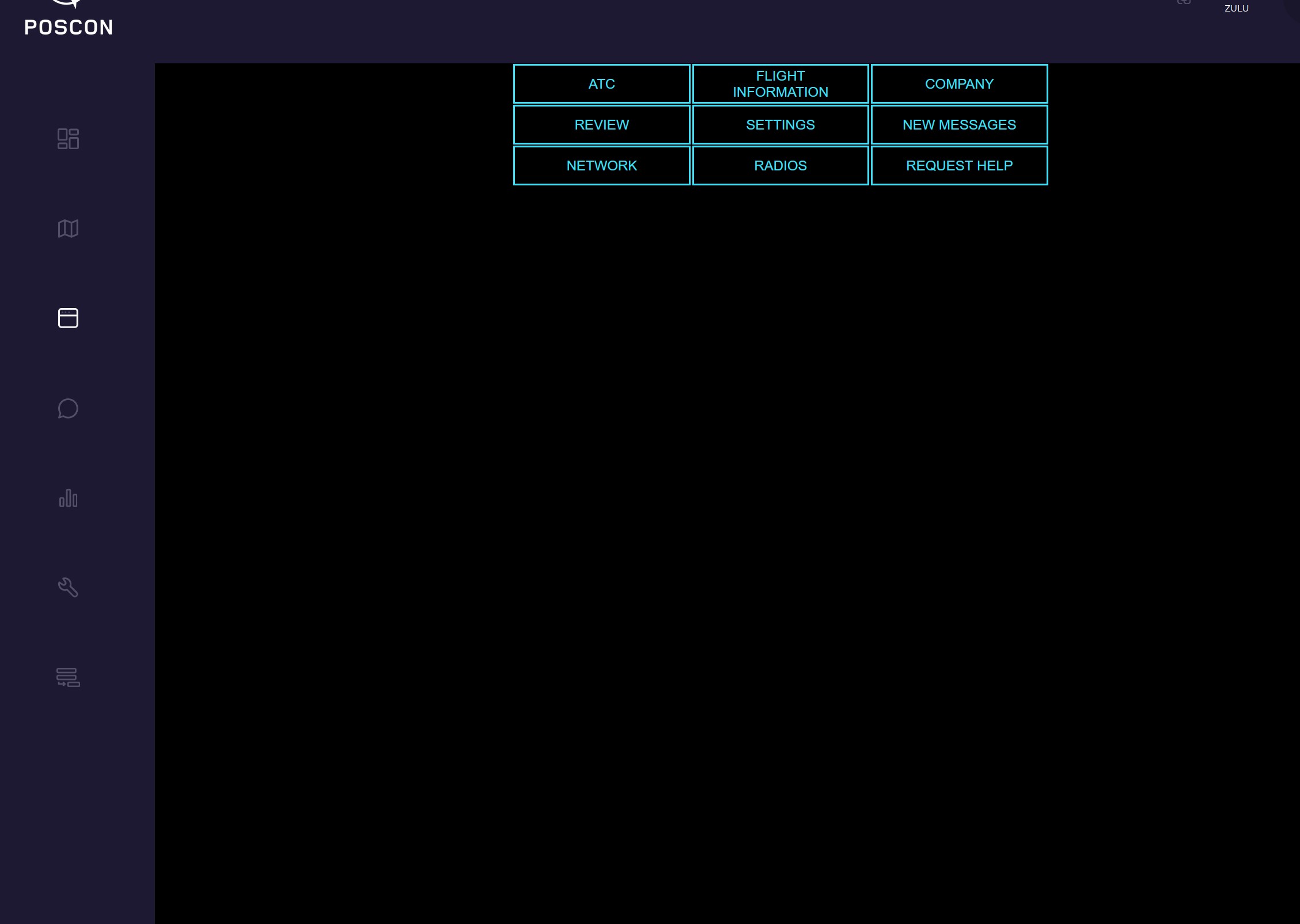
Still have not been able to get the WEB UI to work. The buttons are not clickable, just boxes and Im not able to go to ATC and logon . I am online based on the dashboard showing the option to log out. I've filed three flight plans and have yet been able to get up and complete the flights. Is there a specific sequence I need to be following to launch Poscon and then the sim? Or am I just not getting it? Im really trying to figure this out, but the steps Ive taken have not worked yet. Thanks for the help.
I seem to be stuck on WEB UI page. I have downloaded launcher client and installed the files for x-plane. When I filed my flight plan (VFR) it launched x-plane and then I'm stuck on the WEB UI screen. Not able to get my sqwak code to start the flight. What might I be doing wrong? Thanks
I have always loved aviation since childhood. My dad used to take me to the airport on Saturday mornings for breakfast and we would watch the general aviation aircraft at our small local airport. I was given a flight lesson for my 16th birthday and was hooked for life. Got a PPL in the late 80's and was working on my commercial/instrument ratings when I stopped. Life got in the way and I'm older now but aviation is still my passion! Looking forward to a new online network! Jim aka Jimbob

Important Information
By using this site, you agree to our Terms of Use, Privacy Policy, and Guidelines.