
Jump to content
View in the app

A better way to browse. Learn more.

POSCON

A full-screen app on your home screen with push notifications, badges and more.

To install this app on iOS and iPadOS
  1. Tap the Share icon in Safari
  2. Scroll the menu and tap Add to Home Screen.
  3. Tap Add in the top-right corner.
To install this app on Android
  1. Tap the 3-dot menu (⋮) in the top-right corner of the browser.
  2. Tap Add to Home screen or Install app.
  3. Confirm by tapping Install.

Pilot Resources

Common Issues
Copying Format
Revision: 23 Feb 2022

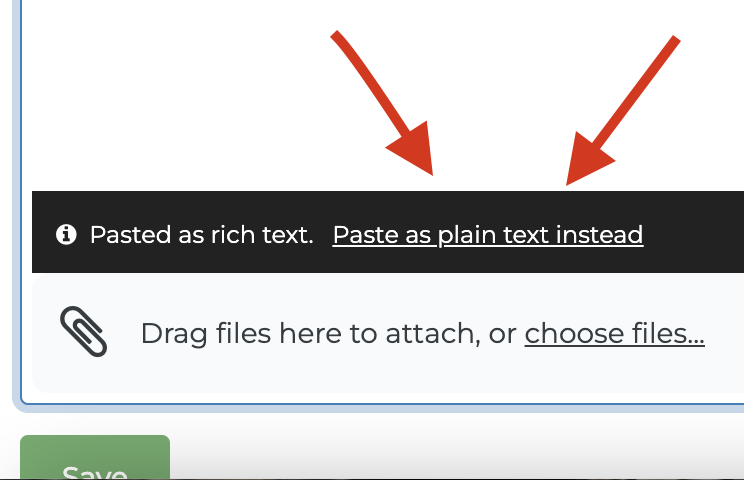
When copying a text or sentence from internet or another document, make sure to select "Pasted as plain text instead" - this will clear all the formats from the previous document and allow the editor to easily manipulate the text.
440185747_Capturedecranle2022-02-03a16_11_42.png.db8d0fe824f9bfa389776f456bb7f666.png


Responsive Design Check
Revision: 23 Feb 2022

Many document editors fail to check the responsive design of their work and are left with visual errors where the content does not look good on a mobile device.

On many supported browsers, pressing F12 will allow editors to change the responsive characteristics of the page.
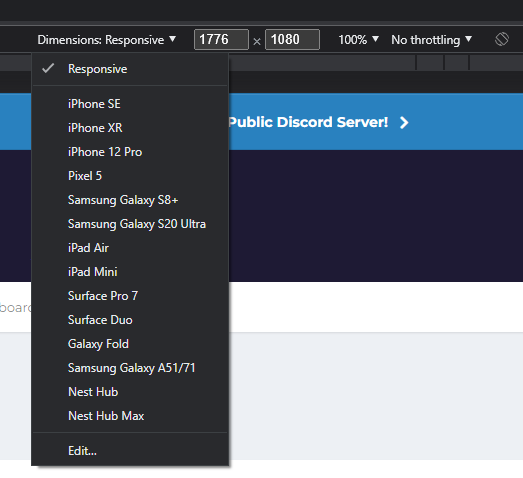
image.png.522cea86f5e152f294bd703c30502db2.png


Important Information

By using this site, you agree to our Terms of Use, Privacy Policy, and Guidelines.

Configure browser push notifications

Chrome (Android)
  1. Tap the lock icon next to the address bar.
  2. Tap Permissions → Notifications.
  3. Adjust your preference.
Chrome (Desktop)
  1. Click the padlock icon in the address bar.
  2. Select Site settings.
  3. Find Notifications and adjust your preference.